|
The batch processing module allows you to automatically process many photos based on configured settings.
To open the batch processing module configuration window, click the  icon located on the toolbar. icon located on the toolbar.
The configuration parameters are grouped into three sections: source images, output images and processing.
Source image parameters
- Source directory
Specifies the location where the source images are stored.
- Image format
Specifies the format in which the source images are saved.
- Number of exposures
Specifies the number of exposures that will make up one HDR image.
If the "All" option is selected, a single HDR image will be created from all the images stored in the source image directory.
The program will display an error if the number of images in the source directory is not a multiple of the number indicated by this parameter.
- Size reduction
Specifies the degree of size reduction of the source images.
Setting a size reduction is recommended when the output images can be smaller than the source images and processing time is critical.
- Color profile
This option is available for images saved in the RAW, OpenEXR and Radiance HDR formats.
For RAW images, it specifies the color space to which the RAW image will be decoded.
For images saved in the OpenEXR and Radiance HDR formats, it specifies the color space in which the source images were saved.
- Image alignment
Specifies whether the source exposures will be automatically aligned. This option is active only when creating images from multiple exposures.
- Ghost reduction
Specifies whether the shifts of objects between individual exposures will be reduced. Object shifts are reduced starting from the brightest exposure of the image,
which has a positive effect on noise reduction in the output image. This option is active only when creating an image from multiple exposures.
- Automatic luminance
Specifies whether the program should stretch the image histogram in order to optimally fill the entire available tonal range. This option is recommended for most images.
It is not recommended for images that are part of a larger image, e.g. a panorama.
- 360° panorama mode
Specifies whether the program should take the wrapping of the image edges into account. With this option, the image presented in a 360° view will have no visible seams.
Output image parameters
- Path - a subdirectory in the source directory
When this option is checked, the directory for the output images will be created in the directory containing the source files.
If the "Rename if exists" option is additionally checked and a directory for the output images already exists in the source image directory,
a new one will be created under a changed name.
- Path - a different location
Specifies the location where the output images will be saved.
- File name - based on the source file names
The output image file names will be created based on the source image file names.
- File name - the number of the processed series
The output file names will be consecutive numbers.
- Image format
Specifies the format(s) in which the output images will be saved. The available formats are JPEG, TIFF, SNS, and combinations of the JPEG and TIFF formats with SNS.
The combinations allow you to save an image in two formats, which can be useful because the SNS format allows the processed images to be re-edited later.
- Quality
This option is available only for the JPEG format and allows you to specify the quality of the saved photos.
- Save EXIF data
Specifies whether the EXIF data read from the source images will be saved in the output images.
- Save GPS data
Specifies whether the geolocation information (if any) will be saved in the output images.
- Convert to sRGB
Specifies whether the color space of the output images should be converted to the sRGB space.
Processing parameters
- Semi-automatic mode
After processing, each image will be displayed in the program's editor, which allows you to make individual changes to the image.
Clicking the  icon on the toolbar saves the current image and displays the next one. icon on the toolbar saves the current image and displays the next one.
- Automatic mode
All images will be processed automatically in the background.
- Preset
Specifies the presets that will be used to process the photos.
The "Current settings" option determines whether the current parameter set, taken from the editor, will be used for processing.
This option allows you to use any parameter settings without the need to create new presets or modify existing ones.
It is also possible to select any number of saved presets.
If more than one preset is selected, the output image will be saved in as many variants as there are selected presets.
Processing starts after pressing the [Start] button. The current processing progress is displayed on the progress bar in the batch processing module configuration window, or
on the toolbar of the main application window.
Processing can be stopped by clicking the [Stop] button in the batch processing module configuration window,
or by clicking the  icon on the toolbar of the main application window. icon on the toolbar of the main application window.
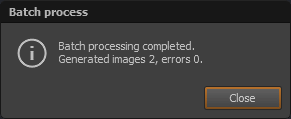
When the process finishes, a summary window will be displayed.
|